EL SCORE

SCORE · RHYTHM · PRACTICE

악보를 펼치면,
연습이 시작됩니다.

박자는 드럼에게.
찾던 영상은 악보 곁에.
당신은 연주에 집중하세요.

악보 보관·필기부터 직접 음표 입력과 세트리스트까지.
연습할 때 필요한 도구를 한곳에 담았습니다.

Google Play에서 설치 ↗

Android 10 이상 · 앱 다운로드 무료
YouTube 연동은 Pro·인터넷이 필요합니다.

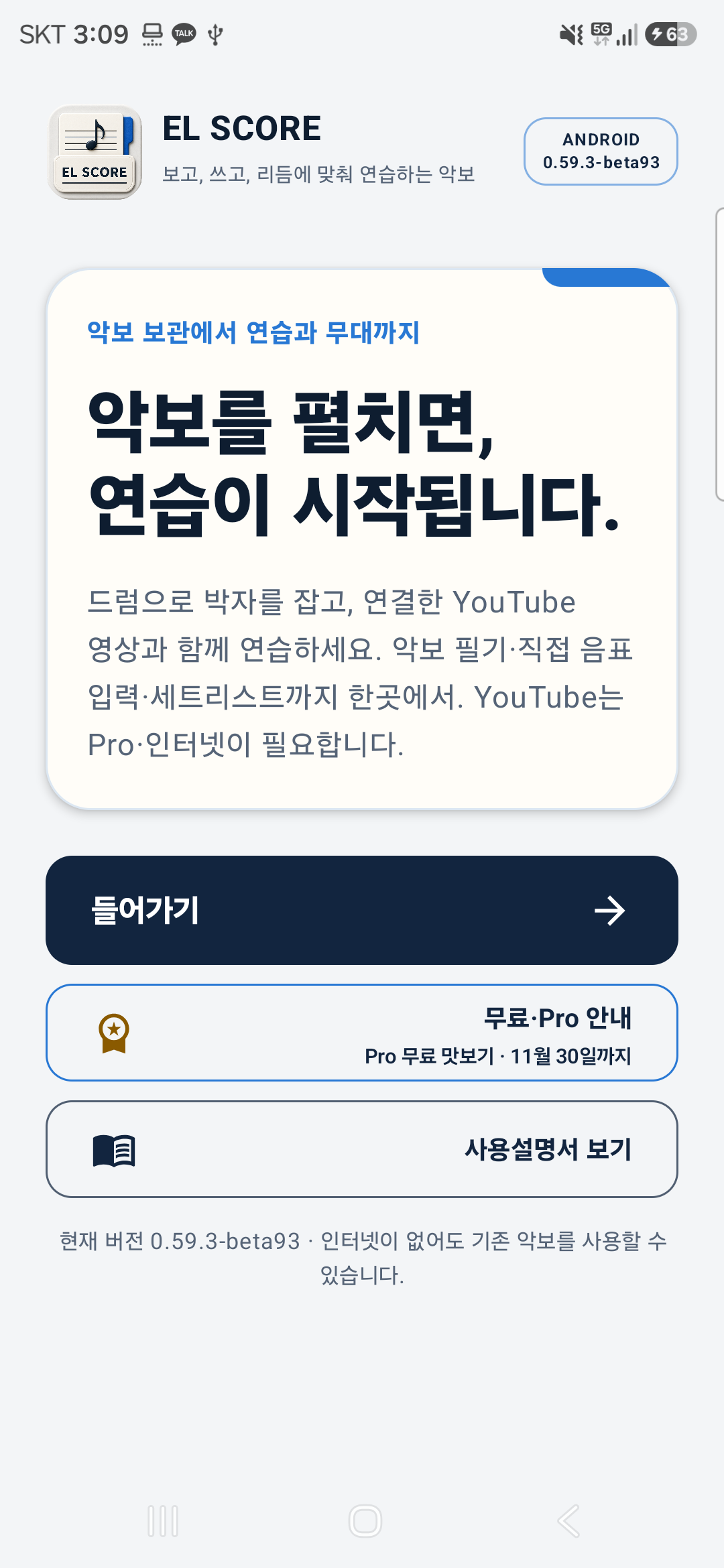
현재 디자인이 적용된 EL SCORE 93버전의 실제 시작 화면
현재 디자인 · 실제 93버전 화면
94버전에는 사용설명서 아래 문의 메뉴가 추가됩니다.

FEEL THE RHYTHM

딱딱한 박자 대신,
리듬을 느끼며.

메트로놈 대용 오프라인 드럼으로 연습하세요. 15가지 리듬, 50~180 BPM, 카운트인과 이동형 조절창으로 나만의 연습 속도를 만듭니다.

기본 8·16비트는 무료 · 확장 리듬은 Pro
PLAY ALONG

찾던 영상과 악보를
한 화면에.

악보 제목으로 YouTube 검색 → 목록에서 영상 선택 → 악보별 링크 저장. 다음 연습에서는 연결해 둔 영상을 다시 여세요.

Pro·인터넷 필요 · 영상이 보이는 상태에서 재생
영상 숨김·화면 잠금·백그라운드 소리 재생은 지원하지 않습니다.

FROM YOUR FIRST NOTE TO THE STAGE

보고, 쓰고, 연습하고.
무대까지 이어집니다.

01

종이 악보를, 내 악보함으로

PDF·사진을 가져오고 여러 장을 한 곡으로 묶으세요. 촬영한 종이의 모서리와 제목 인식 결과는 직접 확인하고 고칠 수 있습니다.

02

메모는 악보 바로 위에

포스트잇을 놓고 크기를 조절한 뒤, 악보의 필기 도구로 텍스트·오선·음표를 넣으세요. 선택한 메모의 X는 내용까지 삭제하며 실행 취소로 되돌릴 수 있습니다.

03

음표를 놓고, 구간을 정돈

기호를 선택해 직접 입력한 음표의 위치와 간격을 정렬합니다. 사진이나 손그림을 완성 악보로 자동 변환하는 기능은 아닙니다.

04

드래그해서 연결·변환

직접 입력한 음표를 고르면 가능한 화음·붙임줄·이음줄·프레이즈·빔 작업이 표시됩니다. 미리보기 후 적용하세요.

05

궁금한 구간, 피아노로 확인

직접 넣은 음표를 구간 선택해 들어보세요. 사진·인쇄 악보의 음 추정은 틀릴 수 있어 원곡과 대조가 필요합니다.

06

내 순서대로, 내 연습대로

악보함·세트리스트함을 네 가지 크기로 보고 즐겨찾기순으로 찾으세요. 카드를 길게 눌러 끌면 직접 정렬됩니다. 세트 안의 곡 순서는 그대로 유지됩니다.

USER GUIDE · 0.59.4-beta94 · 2026.09.12

한 곡으로 시작해 보세요.

길게 눌러 파일 이동·즐겨찾기순 정렬·포스트잇 X 삭제까지, 최신 수정본의 앱 내부 설명서를 반영했습니다. Google Play 배포 시점과 설치된 버전에 따라 메뉴가 다를 수 있습니다.

01 · 처음이라면, 이 순서로 시작하세요

악보 한 곡만 가져오면 읽기·필기·반주 연습을 시작할 수 있습니다.

? 도움말과 문의 구분
? 버튼에서 ‘사진 악보를 추가하고 제목을 고치려면 어떻게 하나요?’처럼 문장으로 질문하세요. 한·영 표현과 관련 주제를 찾아 사용법과 기본 문제 해결을 안내합니다. 앱 안에 준비된 설명을 찾는 오프라인 도움말이며, 범용 AI나 실제 기기 진단은 아닙니다. 오류·개선사항은 앱 첫 화면의 사용설명서 아래 ‘오류·개선사항 문의’에서 작성하세요. 이메일 앱에 blogshalom@naver.com이 채워지며, 그 앱에서 보내기를 눌러야 발송됩니다. 이메일 앱 설정과 인터넷이 필요하며 악보·사진·로그는 자동 첨부하지 않습니다.
1 · 악보 가져오기
악보 목록의 +에서 PDF나 이미지를 고릅니다. 카카오톡·메일·내 파일의 공유에서 EL SCORE를 선택해도 됩니다.
2 · 악보 열기
목록에서 곡을 누릅니다. 좌우로 밀기·화면 가장자리·아래 화살표로 페이지를 넘기고, 확대해 필요한 부분을 봅니다.
악보함·세트리스트함 보기와 정렬
목록 위의 보기 설정에서 최소·기본·큰 카드·한 줄 목록 중 선택합니다. 가나다순·최근 사용순·등록 날짜순·즐겨찾기순·직접 정렬을 사용할 수 있습니다. 즐겨찾기순은 별표를 켠 파일을 먼저 표시합니다. 최근 사용은 실제로 열거나 공연을 시작한 시각이며 수정 날짜와 다릅니다. 악보함과 세트리스트함은 각각의 설정을 기억합니다.
길게 눌러 파일 순서 바꾸기
악보함이나 세트리스트함에서 파일 카드를 길게 누른 뒤 원하는 자리로 끌어 놓습니다. 순서를 바꾸면 직접 정렬로 전환됩니다. 다른 정렬을 사용한 뒤에도 직접 정렬을 선택해 저장한 배치로 돌아올 수 있습니다. 파일 내용이나 세트리스트 안의 곡 순서는 바뀌지 않습니다. 직접 정렬과 세트리스트 별표는 이 기기의 보기 설정이며 기존 ZIP 자료 백업에는 포함되지 않습니다.
3 · 오늘의 연습 선택
연필은 필기, 드럼은 리듬 연습, YouTube는 연결한 영상과 연습입니다. 드럼과 영상은 각각의 연습 수단이며 자동으로 박자가 동기화되지는 않습니다.
4 · 저장 확인
설정에서 필기 저장 방식을 정하고 중요한 수정 뒤에는 저장을 누르세요. 공연 전에는 PDF 내보내기와 ZIP 백업도 준비합니다.
02 · 메트로놈 대신, 드럼과 함께 연습

일정한 박자에 리듬의 느낌까지. 인터넷 없이 악보 위에서 드럼 반주를 시작하세요.

시작 순서
악보 열기 → 드럼 버튼 → 리듬·BPM·박자 선택 → 시작. 시작 전 카운트인에 맞춰 연주를 준비하세요.
15가지 리듬
스트레이트 8·16비트, 셔플, 블루스 셔플, 스윙 재즈, 보사노바, 삼바, 6/8 슬로우록, 소울 6/8, 3/4 왈츠 등 곡의 분위기에 맞춰 고릅니다.
속도와 박자
50~180 BPM을 10단위로 조절합니다. 박자는 2/4·3/4·4/4·6/8입니다. 6/8의 BPM은 점4분음표 큰 박 기준이므로 같은 숫자의 4/4와 느낌이 다릅니다.
작은 조절창
재생·정지와 음량을 조절하고 조절창을 옮겨 악보를 확보하세요. 전화·다른 앱의 소리·백그라운드 전환으로 중지되면 돌아와 다시 시작합니다.
무료와 Pro
기본 무료 리듬은 스트레이트 8비트·16비트입니다. 나머지 리듬은 Pro 범위이며 맛보기 중에는 함께 체험할 수 있습니다.
03 · 곡을 찾았다면, 영상도 악보에 연결

연습할 때마다 영상을 다시 찾는 수고를 줄이세요. 연결한 영상과 악보를 한 화면에서 봅니다.

제목으로 검색
악보의 YouTube 버튼을 누르고 검색할 제목을 확인합니다. 찬송가 번호나 설명이 섞이면 지우고 곡 제목만 남겨 검색하세요.
목록에서 선택·저장
아래 영상 목록에서 원하는 영상을 누르면 해당 악보에 링크가 저장됩니다. 다른 영상을 쓰려면 플레이어의 더보기 → 영상 변경을 사용합니다.
연습에 필요한 조작
영상이 보이는 상태에서 재생·일시정지, 10초 뒤로·앞으로, 음량을 조절합니다. 이동 아이콘을 드래그하면 앱 화면 안에서 위치를 바꿀 수 있습니다.
접기와 다시 펼치기
접기 버튼은 영상과 재생을 함께 멈춥니다. 다시 펼친 뒤 재생하세요. 영상 숨김 상태의 소리만 재생·화면 잠금·백그라운드 재생 기능은 제공하지 않습니다.
재생되지 않을 때
인터넷과 기기 미디어 음량을 확인합니다. 영상의 삽입 재생 제한이나 공개 상태에 따라 재생이 안 될 수 있으므로 다른 영상을 선택하거나 더보기에서 YouTube로 여세요.
이용 조건
Pro 권한과 인터넷이 필요합니다. 검색어는 검색 서버와 YouTube에 전송됩니다. 저장되는 것은 링크이며 영상 다운로드·오디오 추출·악보 자동 넘김은 지원하지 않습니다. YouTube에서 제공하는 광고가 나올 수 있습니다.
04 · 종이 악보도, 여러 장의 사진도 한 곡으로

찍고, 모서리를 확인하고, 순서대로 묶으세요. 제목 입력도 인식 결과를 바탕으로 시작합니다.

촬영·이미지 추가
+ → 종이 악보 촬영하기 또는 이미지로 악보 만들기. 한 장 더 촬영·이미지 추가로 페이지를 이어 넣고 순서와 회전을 확인합니다.
네 모서리 확인
자동 경계와 원근 보정 결과를 확인하세요. 종이 전체가 보이고 배경과 대비될수록 유리합니다. 잘못 잡힌 모서리는 직접 조절하고 완료를 누릅니다.
제목 확인 후 만들기
첫 페이지 상단의 제목 후보가 파일명에 들어갑니다. 인식은 보조 기능이므로 번호·부제·오타를 확인해 고친 뒤 악보를 만듭니다.
05 · 빈 오선지에서 시작하는 나만의 악보

음표를 손으로 예쁘게 그리지 않아도 됩니다. 기호를 고르고 오선 위에 직접 놓으세요.

종이와 오선 준비
+ → 빈 종이·오선지 만들기에서 제목·페이지 수·양식을 고릅니다. 필기 도구의 오선 그리기로 필요한 곳에 오선을 추가할 수도 있습니다.
음표·쉼표·악보기호
연필 버튼에서 음표·쉼표·음자리표·박자표·임시표 등을 고르고 오선 가까이에 놓습니다. 오선 간격에 맞춘 위치와 크기, 필요한 덧줄을 확인하세요.
입력 후 조정
위치가 다르면 이동 도구로 기호를 선택해 옮깁니다. 크기 조절 손잡이와 음표 수정 옵션으로 보완하세요. 2초 안에 다시 누르는 자동 이동 전환은 사용하지 않습니다.
코드 이름과 화음의 차이
코드 메뉴는 C·Am·G7 같은 이름을 넣습니다. 여러 음표를 하나의 화음으로 묶는 작업은 연결·변환에서 합니다.
06 · 연주 포인트를 악보 위에 바로 기록

운지·주의 구간·연습 메모를 기록하고, 포스트잇 안에도 오선과 음표를 넣으세요.

필기와 포스트잇
연필에서 포스트잇을 누르면 악보 위에 기본 메모지가 바로 생깁니다. 별도 메모 편집창은 열리지 않습니다. ‘메모 크기’에서 테두리 손잡이를 끌어 크기를 조절하고, ‘메모 이동’에서 내용과 함께 옮깁니다. 빈 메모도 보관할 수 있습니다.
포스트잇 삭제
한 쪽 보기에서 포스트잇을 선택하면 오른쪽 위에 X가 나타납니다. X를 누르면 해당 메모지와 그 안의 글자·기호가 함께 삭제됩니다. 다른 메모나 바깥 악보 필기는 지우지 않습니다. 실수로 지웠다면 상단 실행 취소를 누르세요. 두 쪽·반쪽·공연 보기에서는 공연을 끝내거나 연필 도구를 열어 한 쪽 편집으로 전환한 뒤 선택하세요.
메모 안에서 자유롭게 배치
‘메모에 작성 중’ 상태에서 위쪽의 기존 오선·음표·텍스트 도구를 골라 메모 안에 작성합니다. 오선은 원하는 위치와 크기로 직접 끌어 그리며, 음표는 그 메모 안의 오선을 기준으로 놓입니다. 텍스트는 기존 항목을 피한 빈 곳에 배치합니다. 공간이 없으면 글자를 줄이거나 항목을 옮기거나 메모를 확대하세요. 기존 이동·크기·지우개 도구로 메모 안 항목도 수정합니다. 바깥 악보에 쓰려면 ‘악보에 작성’을 누르세요.
개별 지우기와 전체 지우기
지우개는 앱에서 추가한 항목을 개별로 지웁니다. 메모 작성 중 휴지통은 그 메모 내용만 지우고, 악보에 작성 중에는 현재 페이지 필기 전체를 지웁니다. 확인창의 범위를 꼭 읽으세요. PDF·사진의 원래 인쇄 내용은 개별 음표로 지워지지 않습니다.
원본 일부 가리기
원본 가리기로 필요한 부분을 가린 뒤 새 기호나 텍스트를 올릴 수 있습니다. 필기 숨기기·실행 취소로 원본과 비교하세요.
손가락과 S펜
일반 악보에서는 손가락으로 쓰기가 꺼져 있으면 손가락은 화면 조작용입니다. 활성 메모 안에서는 손가락으로도 작성할 수 있습니다. 메모 안 구간 피아노·자동정렬·연결 변환 편집은 아직 지원하지 않으며, ‘악보에 작성’으로 돌아가면 사용할 수 있습니다. 일반 악보기호·선 도구는 메모에서도 사용합니다.
07 · 직접 넣은 음표, 구간을 골라 가지런하게

오선과 마디 안의 공간을 기준으로 위치·간격을 정리하고, 미리보기에서 확인한 뒤 적용합니다.

선택 → 확인 → 적용
선택구간 악보정렬을 누르고 음표 머리와 마디 안 여백이 들어가게 드래그합니다. 미리보기의 음표 수와 위치를 확인하고 적용하세요.
정렬 대상
음표 버튼 등으로 직접 배치한 악보기호가 대상입니다. 사진·PDF의 인쇄 음표나 펜으로 그린 음표를 인식해 바꾸는 기능은 아닙니다.
공간 부족·연결 구간
공간이 부족하거나 안전하게 옮길 수 없는 표시가 있으면 원본을 유지합니다. 범위를 넓히거나 마디 폭을 조절하세요. 새 연결로 묶인 음표는 일부만 고르지 말고 모두 포함합니다.
08 · 먼저 입력하고, 나중에 연결·변환

드래그로 고른 음표에 가능한 작업이 표시됩니다. 화음·붙임줄·이음줄·프레이즈·빔을 미리 보고 적용하세요.

1 · 직접 입력 음표 선택
연결·변환을 누르고 한 오선 안의 음표 머리를 2개 이상 포함해 드래그합니다. 목록에서 필요 없는 음표는 체크를 해제하세요.
2 · 가능한 작업 고르기
화음은 같은 세로열 근처의 같은 길이 음표, 붙임줄은 같은 음높이 2개가 필요합니다. 프레이즈는 3개 이상, 빔은 같은 기둥 방향의 8·16·32분음표이며 마디선을 넘지 않습니다.
3 · 미리보기 후 적용
작업을 고르면 악보 위에 미리보기가 나옵니다. 곡선의 자동·위·아래 방향을 고르고 적용합니다. 선택에 맞지 않는 작업은 이유를 확인하세요.
나중에 수정·해제
같은 음표를 다시 구간 선택하면 기존 연결이 표시됩니다. 방향을 바꾸거나 연결만 삭제할 수 있고 음표는 남습니다. 잘못 적용하면 실행 취소를 사용하세요.
현재 지원 범위
한 페이지·한 오선의 직접 입력 음표가 대상입니다. 연결선 끝점 직접 드래그, 여러 오선·페이지에 걸친 연결, 가사 멜리스마 자동 연결은 아직 지원하지 않습니다.
09 · 궁금한 구간은 피아노 소리로 확인

전체 곡 대신 필요한 부분을 골라 들으세요. 직접 입력한 음표를 확인하는 연습 보조 도구입니다.

구간 선택과 재생
선택 구간 피아노 연주를 누르고 오선과 음표를 포함해 드래그합니다. 작은 창에서 재생·일시정지·정지, 5초 전후 이동과 음량을 조절합니다.
직접 입력한 음표 우선
직접 입력한 음표의 위치와 길이를 바탕으로 연주합니다. 같은 시점의 화음과 새 붙임줄 관계가 반영됩니다. 모든 주법과 표현을 재현하는 전문 자동 반주 기능은 아닙니다.
사진·인쇄 악보 주의
사진·PDF 구간은 높은음자리표 기준의 가장 높은 성부를 우선 추정합니다. 복잡한 화음·여러 성부·촬영 상태에 따라 틀릴 수 있으므로 원곡과 대조하세요. 완전한 악보 인식이나 정확도 보장 기능이 아닙니다.
10 · 연습한 곡 순서 그대로, 무대까지

세트리스트로 곡 순서를 정하고, 공연 모드와 페이지터너로 연주에 집중하세요.

세트리스트함
세트리스트를 누르면 악보함처럼 저장된 세트리스트 카드가 보이는 전용 화면으로 이동합니다. 이름·곡으로 찾아 카드를 열고 곡 추가·순서 변경·공연 시작을 할 수 있습니다. 악보를 보고 돌아오면 선택했던 목록 화면을 이어서 사용할 수 있습니다.
달력에서 일정 선택
일정표를 누르면 월별 달력이 바로 보입니다. 날짜를 누르면 그날 등록된 일정별 세트리스트가 모두 표시됩니다. 같은 날짜나 같은 원본 세트리스트로 여러 일정을 만들어도 별도로 선택할 수 있습니다. 빈 날짜에서는 사용할 세트리스트를 골라 일정을 추가하세요. 일정은 등록 당시의 곡 목록을 복사하므로 원본을 나중에 수정해도 이미 등록한 일정이 자동 변경되지는 않습니다.
공연 시작
공연 모드에서는 화면 켜짐을 유지합니다. 세트리스트로 시작하면 곡의 마지막에서 다음 곡으로 이어 넘길 수 있습니다. 중요한 공연 전에 전체 순서를 시험하세요.
페이지 넘기기
손가락 밀기·가장자리 터치·아래 화살표 또는 지원되는 Bluetooth 페이지터너를 사용합니다. 페달 방향이 반대면 방향 설정을 바꾸세요. 모든 페달과의 호환을 보장하지는 않습니다.
크게 보고 대비하기
반쪽 페이지·두 페이지 보기로 화면에 맞춰 봅니다. 공연 비상 이미지를 미리 내보내면 앱이 열리지 않을 때도 갤러리에서 곡 순서대로 확인할 수 있습니다.
11 · 쌓인 연습 기록, 저장하고 나누세요

연주 메모가 담긴 PDF를 공유하고, 다시 편집할 자료는 ZIP 백업으로 따로 보관하세요.

자동 저장·수동 저장
설정 → 필기 저장 방식에서 1분마다 자동 저장 또는 내가 요청할 때만 저장을 선택합니다. 수동 저장에서는 작업 후 저장을 꼭 누르세요.
PDF 저장·공유
악보 더보기에서 원본 또는 필기 포함 PDF를 저장합니다. 공유 버튼으로 필기를 포함한 악보를 보낼 수 있습니다. 공유 PDF는 표시 결과이며 편집 자료 전체 백업과는 다릅니다.
페이지 편집
더보기 → 페이지 편집·합치기에서 순서·회전·복제·삭제·다른 악보 합치기를 사용합니다. 원본 파일 자체 삭제와 필기 삭제를 구분해 확인하세요.
ZIP 백업·복원
로컬 백업을 만들고 앱 외부의 안전한 위치에도 복사하세요. 새 기기에서는 ZIP 복원으로 가져옵니다. 자동 클라우드 동기화는 제공하지 않으며 앱 삭제·데이터 초기화 전에 백업을 확인해야 합니다.
12 · 무료 기능은 계속, Pro는 기간제 맛보기

Pro 맛보기는 2026년 11월 30일까지 제공됩니다. 12월 1일부터는 무료 기능으로 계속 이용할 수 있습니다. 자동 결제되지 않으며 저장한 자료는 삭제되지 않습니다.

무료 범위
새 악보 5개, 세트 1개·최대 5곡까지의 등록과 기본 필기·기본 기호·기본 드럼 2종을 제공합니다. 기존 악보 열람·PDF 내보내기·ZIP 백업·복원은 계속 가능합니다.
Pro 범위와 종료
한도 확대, 확장 펜·글꼴·악보기호·코드·드럼, YouTube 연동 등이 Pro 범위입니다. 한국시간 2026년 12월 1일 00:00에 맛보기만 종료되며 인터넷·새 업데이트 없이도 적용됩니다. 날짜를 되돌리면 체험이 중지될 수 있습니다.
자료는 유지·결제는 시작되지 않음
맛보기 중 무료 한도를 넘겨 만든 자료도 삭제하지 않습니다. 기존 자료의 열람·백업·내보내기 경로는 유지합니다. 현재 신규 구매·구독은 없으며 12월이 됐다는 이유로 결제가 켜지지 않습니다.
오프라인과 온라인 구분
저장한 악보 열람·필기·드럼 등은 오프라인으로 이용합니다. YouTube 검색·재생과 온라인 업데이트 확인에는 인터넷이 필요합니다. 앱 자체 광고 SDK는 없지만 YouTube 영상에는 광고가 나올 수 있습니다.
English user guide — 12 chapters
01 · Start here: from score to practice

Bring in one score and start reading, marking, and practicing.

? Help versus contacting us
Use ? Help to ask in a sentence, for example: How do I add a photo score and correct its title? It matches Korean or English expressions to relevant instructions and basic troubleshooting. This offline guide searches built-in help; it is not general-purpose AI or a live device diagnosis. For feedback, use Report a bug or suggest an improvement below User guide on the start screen. Your email app addresses it to blogshalom@naver.com; tap Send there to send it. A configured email app and internet are required. Scores, photos, and logs are not attached automatically.
1 · Import a score
Use + in the library to choose a PDF or images, or share a file to EL SCORE from your messenger, email, or file app.
2 · Open it
Tap the score. Swipe, tap a screen edge, or use the lower arrows to turn pages; zoom in when needed.
Collection layout and sorting
Choose Compact, Standard, Large, or List from the collection display control. Sort by name, recently used, date added, Favorites first, or Custom order. Favorites first puts starred files ahead of the others. Recently used reflects opening a score/setlist or starting a performance, not its edit date. The two collections remember their settings separately.
Long-press to arrange your files
Long-press a file card in Scores or Setlists, then drag it to the desired position. Reordering switches to Custom order. After using another sort, select Custom order to return to your saved arrangement. This does not change file contents or the songs inside a setlist. Custom order and setlist stars are device-local display preferences, not part of the existing ZIP data backup.
3 · Choose your practice
Use Pen to annotate, Drum for rhythm practice, or YouTube to practice with a linked video. Drums and videos are separate practice tools; their timing is not automatically synchronized.
4 · Check your save
Choose an annotation save mode in Settings and save important edits. Export a PDF and keep a ZIP backup before a performance.
02 · Keep time with a groove, not just a click

Feel the rhythm as you keep time. Start a drum groove over your score, even offline.

Get started
Open a score → Drum → choose rhythm, BPM, and meter → Start. Get ready with the count-in.
15 rhythms
Choose straight 8th/16th grooves, shuffle, blues shuffle, swing jazz, bossa nova, samba, 6/8 slow rock, soul 6/8, 3/4 waltz, and more.
Tempo and meter
Set 50–180 BPM in steps of 10. Meters: 2/4, 3/4, 4/4, and 6/8. In 6/8, BPM counts the dotted-quarter pulse, so the same number feels different from 4/4.
Small floating controls
Control playback and volume, and move the floating controls away from the music. Restart after a call, another app taking audio focus, or switching to the background interrupts playback.
Free and Pro
Straight 8th and 16th grooves are free. The other rhythms require Pro access and are included in the Pro preview.
03 · Keep the right video with the right score

Spend less time finding the same video again. View the linked video alongside your score.

Search by title
Tap YouTube in the score and check the search title. Remove hymn numbers or extra text if needed, then search for the song title.
Choose and link
Select a result in the list to save its link with the current score. To replace it, use the player’s More menu → Change video.
Practice controls
While the video is visible, play/pause, seek 10 seconds backward or forward, and adjust volume. Drag the move icon to reposition the player within the app.
Collapse and restore
Collapsing hides the video and pauses playback. Restore the player and press Play. Audio-only, screen-locked, and background playback are not provided.
If a video will not play
Check internet access and device media volume. Embedding restrictions or a video’s availability can prevent playback; choose another result or open it in YouTube from More.
Availability
Requires Pro access and internet. Queries are sent to the search service and YouTube. Only the link is saved: video downloads, audio extraction, and automatic score following are not supported. YouTube-served ads may appear.
04 · From paper pages to one organized score

Capture pages, check their corners, and combine them in order. Title recognition gives naming a head start.

Capture or add images
Use + → Photograph a paper score or Create from images. Capture another page or add images, then check order and rotation.
Check all four corners
Review automatic boundaries and perspective correction. Keep the whole page visible against a contrasting background. Adjust incorrect corners manually, then tap Done.
Confirm the title
A title candidate from the top of the first page is used for the file name. Recognition is an aid: correct extra numbers, subtitles, or mistakes before creating the score.
05 · Start your own music on blank staff paper

No need to draw perfect note shapes. Choose a symbol and place it directly on the staff.

Prepare the staff
Use + → Create blank paper or staff, then choose a title, page count, and layout. You can also draw a staff from the annotation toolbar.
Notes, rests, and symbols
Open Pen tools, choose notes, rests, clefs, time signatures, or accidentals, and place them near the staff. Check staff-relative position, size, and any ledger lines.
Adjust after placing
If placement needs adjustment, choose Move and select the symbol. Use resize handles and note-editing options as needed. There is no automatic move mode triggered by retapping within two seconds.
Chord symbols versus chords
The Chord menu inserts names such as C, Am, and G7. To group several noteheads into a chord, use Connect & transform.
06 · Keep rehearsal notes where you need them

Mark fingerings, tricky passages, and reminders; add staff lines and notes inside a sticky note too.

Annotations and sticky notes
Tap Sticky note in Pen tools to place a default note directly on the score, with no separate note editor. Use Resize note and its handles to change dimensions; Move note moves the frame and its contents together. Empty notes can also be kept.
Delete a sticky note
In single-page view, select a sticky note to show an X at its top-right. Tap X to remove that note and its text and symbols together. Other notes and page annotations are not deleted. Use Undo above the score if needed. From two-page, half-page, or performance view, exit performance or open Pen to switch to single-page editing before selecting the note.
Arrange items freely inside a note
While Writing in note is shown, use the existing Staff, Note, or Text tools inside the note. Drag staff lines at the desired position and size; notes use the staff inside that note, not the page behind it. Text is placed in free space. If it cannot fit, reduce the font, move other items, or enlarge the note. The usual Move, Resize, and Eraser tools also edit note contents. Tap Write on score to return to the surrounding page.
Erase one item or clear annotations
Eraser removes individual added items. While writing in a note, Trash clears only that note’s contents; while writing on the score, it clears the current page’s annotations. Read the confirmation scope. Printed PDF/photo notes are not individually erasable objects.
Cover part of the original
Cover an area of the original before placing a corrected symbol or text. Hide annotations or use Undo to compare with the original.
Touch and S Pen
On the main score, fingers control the view when Finger writing is off. You can also write with a finger inside an active note. Region piano, automatic alignment, and Connect & transform are not supported inside notes; return with Write on score to use them on the page. Ordinary notation and line tools are available inside notes.
07 · Give your placed notes room to read

Arrange positions and spacing using the staff and available measure space, then review before applying.

Select → review → apply
Choose Align score region and drag around noteheads plus the available space inside the measure. Review the note count and positions before applying.
What can be aligned
This works on notation placed with the app’s symbol tools. It does not recognize and convert printed PDF/photo notes or hand-drawn notes.
Space and connected notes
If space is insufficient or a marking cannot be moved safely, the original stays unchanged. Expand the selection or measure width. Include all notes belonging to a new structured connection, not just some of them.
08 · Place the notes first. Connect them next.

Select placed notes by dragging to see available actions. Preview chords, ties, slurs, phrasing slurs, or beams before applying.

1 · Select placed notes
Tap Connect & transform and drag around at least two placed noteheads on one staff. Uncheck any unwanted notes in the list.
2 · Choose an available action
Chords need equal-duration notes near the same horizontal position; ties need two notes of the same pitch. Phrasing slurs need at least three notes. Beams support 8th, 16th, and 32nd notes with matching stem direction, without crossing a barline.
3 · Preview and apply
Choose an action to preview it over the score. Set curved connections to Auto, Above, or Below, then Apply. Unavailable actions show why they cannot be used.
Edit or remove later
Select the same notes again to see existing connections. Change curve direction or delete only the connection, leaving the notes intact. Use Undo if needed.
Current scope
Works on directly placed notes on one staff of one page. Direct dragging of connection endpoints, cross-staff/page connections, and lyric melisma linking are not yet supported.
09 · Hear a selected passage on piano

Listen to just the passage you need. A practice aid for checking notes you entered.

Select and listen
Choose Play selected region on piano and drag around the staff and notes. Use the small player to play/pause, stop, seek five seconds, and adjust volume.
Placed notes first
Playback uses the positions and durations of placed notes, including simultaneous chords and new structured ties. It is not a full accompaniment engine reproducing every articulation and expression.
Printed-music limitation
For photos/PDFs, the offline estimate prioritizes the highest voice using a treble-clef assumption. Complex chords, multiple voices, and image quality can cause errors. Compare with the original; this is not complete or guaranteed-accurate score recognition.
10 · Take your rehearsal order onto the stage

Arrange a setlist, enter performance mode, and use page turning to stay focused on playing.

Setlist collection
Tap Setlists to open a dedicated collection of saved cards, like the score library. Search by name or song, open a card, and add scores, reorder songs, or start performing. Return from a score to continue in the same library section.
Choose an event on the calendar
Schedule opens the month calendar immediately. Tap a date to see every setlist scheduled that day. Multiple events on the same date, including copies of the same source setlist, remain independently selectable. On an empty date, choose a setlist to add an event. Events copy the song list at creation; later edits to the source do not automatically change existing events.
Start performing
Performance mode keeps the screen awake. A setlist lets you continue from the end of one score into the next. Test the full sequence before an important performance.
Turn pages your way
Use swipes, edge taps, lower arrows, or a compatible Bluetooth page turner. Reverse the pedal direction in settings if needed. Compatibility with every pedal is not guaranteed.
See clearly and prepare a fallback
Use half-page or two-page view to suit your screen. Export emergency performance images beforehand so you can view them in Gallery if the app cannot open.
11 · Keep and share the work you put in

Share an annotated PDF and keep a ZIP backup for data you want to edit again.

Automatic or manual saving
Settings → Annotation save mode offers automatic saving every minute or saving only on request. In manual mode, remember to save after editing.
Export and share a PDF
Save the original or annotated PDF from More, or share an annotated score. The exported PDF is the rendered result, not a complete editable-data backup.
Edit pages
More → Edit and merge pages offers reorder, rotate, duplicate, delete, and merge. Distinguish score-file deletion from deleting annotations before confirming.
ZIP backup and restore
Create a local backup and copy it to a safe location outside the app. Restore the ZIP on a new device. There is no automatic cloud sync; verify your backup before uninstalling or clearing app data.
12 · Free features stay. Pro preview is time-limited.

Pro preview is available through November 30, 2026. From December 1, free features remain available. You will not be charged automatically, and saved data will not be deleted.

Free scope
Create up to 5 scores and 1 setlist of up to 5 songs, with basic annotation, symbols, and two basic drum grooves. Existing scores, PDF export, and ZIP backup/restore remain accessible.
Pro scope and expiry
Pro covers expanded limits, pens, fonts, notation, chords, drum grooves, and YouTube integration. The preview ends at 00:00 on December 1, 2026 (Korea time), including offline without a new update. Turning the device clock back may suspend the preview.
Keep your data; no automatic charge
Data created beyond the free limits during the preview is not deleted. Viewing, backup, and export remain available. New purchases and subscriptions are not currently offered; reaching December does not activate billing.
Offline versus online
Saved scores, annotation, and drums work offline. YouTube search/playback and online update checks need internet. The app has no advertising SDK of its own, but YouTube videos may show ads.

READY WHEN YOU ARE

이제, 첫 곡을 펼쳐보세요.

Google Play에서 설치하거나 업데이트한 뒤,
악보 목록의 + 버튼으로 PDF·사진을 가져오세요.

Google Play에서 EL SCORE 열기 ↗

앱을 삭제하지 말고 Play의 업데이트 버튼을 이용하세요.
배포 상태와 기기에 따라 업데이트 표시 시점은 다를 수 있습니다.

무료 기능은 계속, Pro는 맛보기.

Pro 맛보기는 2026년 11월 30일까지 제공됩니다. 12월 1일부터는 무료 기능으로 계속 이용할 수 있습니다. 자동 결제되지 않으며 저장한 자료는 삭제되지 않습니다.

저장한 악보·필기와 드럼은 오프라인으로 이용합니다. YouTube는 인터넷이 필요하고 영상에 광고가 나올 수 있습니다. 악보 자료는 ZIP 백업으로 따로 보관하세요. 직접 정렬과 세트리스트 별표는 기기별 보기 설정이며 ZIP 백업에는 포함되지 않습니다.

오류·개선사항을 알려주세요

앱 첫 화면 → 사용설명서 아래 ‘오류·개선사항 문의’. 이메일 앱에서 내용을 확인하고 보내기를 누르면 blogshalom@naver.com으로 발송됩니다. ? 버튼은 문장으로 질문하는 오프라인 도움말입니다. 준비된 사용법을 찾아 안내하며 범용 AI나 실제 기기 진단은 아닙니다.

안내 기준 0.59.4-beta94 최신 수정본 · 실제 설치 가능 버전은 Google Play에서 확인하세요.